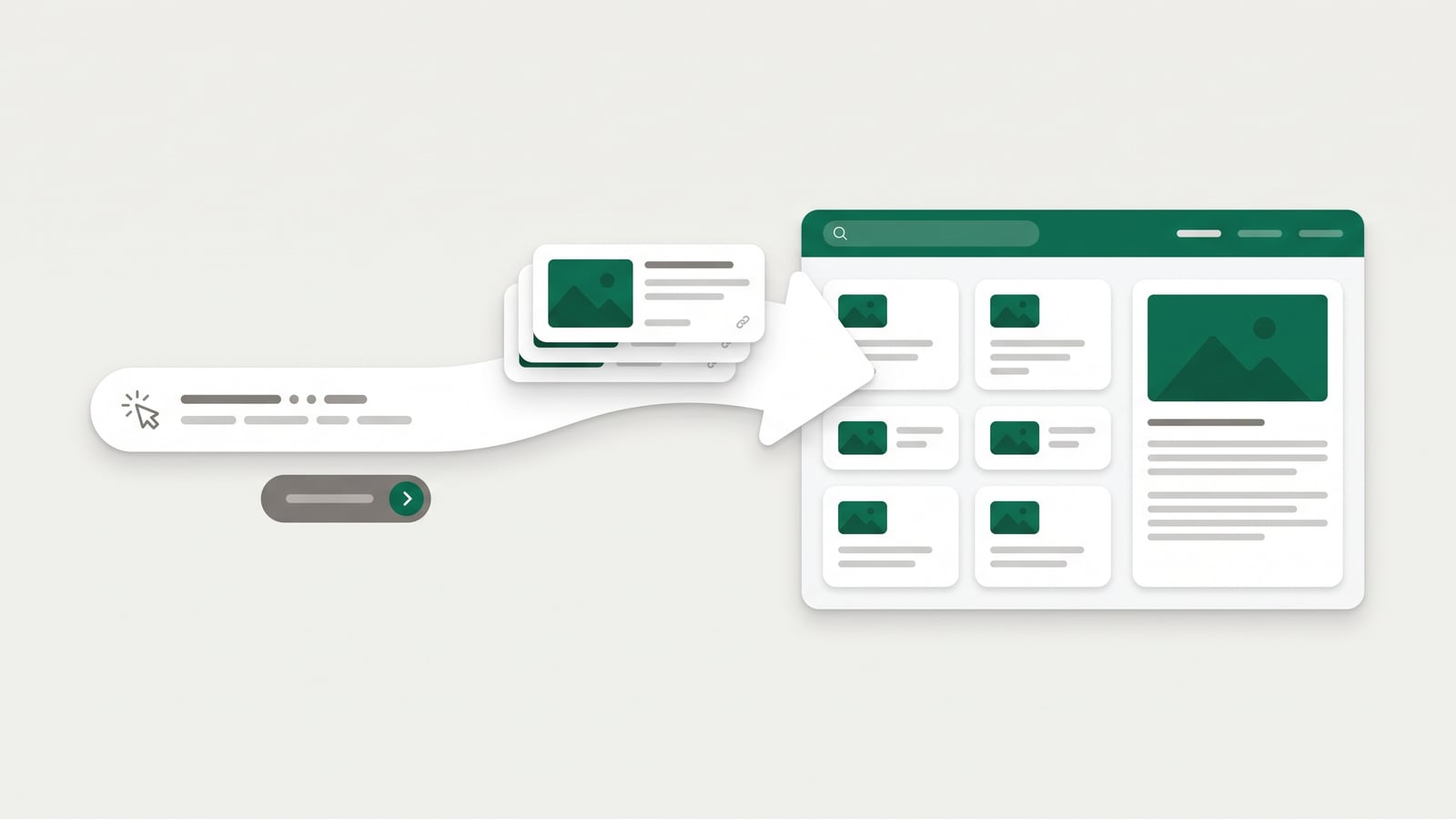
One address, every article
Moving a help center used to mean exporting files, cleaning them up and fixing every image and link by hand. Now you paste the address of the help center you use today, and HelpLayer brings it over.
It reads every public article, keeps its categories and sections, copies its images into your new help center, and points the links between articles to their new pages. Nothing changes in your old help center.
Where it works
Zendesk: articles, categories and sections, through Zendesk's public Help Center API.
Intercom: collections and their sub-collections.
Help Scout: Docs categories and their articles.
GitBook, Mintlify, Document360 and Ferndesk: every page they publish, with its sections.
Most other sites: their sitemap or their links, with the category taken from each page's breadcrumb.
How it goes
In HelpLayer, open Articles → Import from another help center (or Bring your current help center over on the overview).
Paste the address, like help.yourcompany.com. HelpLayer finds the articles and shows you their categories.
Choose the categories to bring, and whether to publish them straight away or keep them as drafts to check first.
Follow the progress, or leave the page: it carries on. When it's done, you see what came in and anything that couldn't.
Then keep it current
Once your articles are in, connect them to their sources: a GitHub repository, or a web page like your pricing page or changelog. When your product changes, HelpLayer writes the update to the article and its video, and waits for your approval. You can also make a narrated video and a click-through demo for any article.
Good to know
Only public articles can be read. Private or password-protected articles stay where they are.
Your plan's article limit applies: on the free plan, the first 25 come in.
Big help centers take a few minutes. The page shows each article as it comes in.
 HelpLayer