Do the task once, get the guide
Writing a how-to by hand means doing the task, taking screenshots, cropping them and describing every click. The new Chrome extension and the new desktop app for Mac do that part for you.
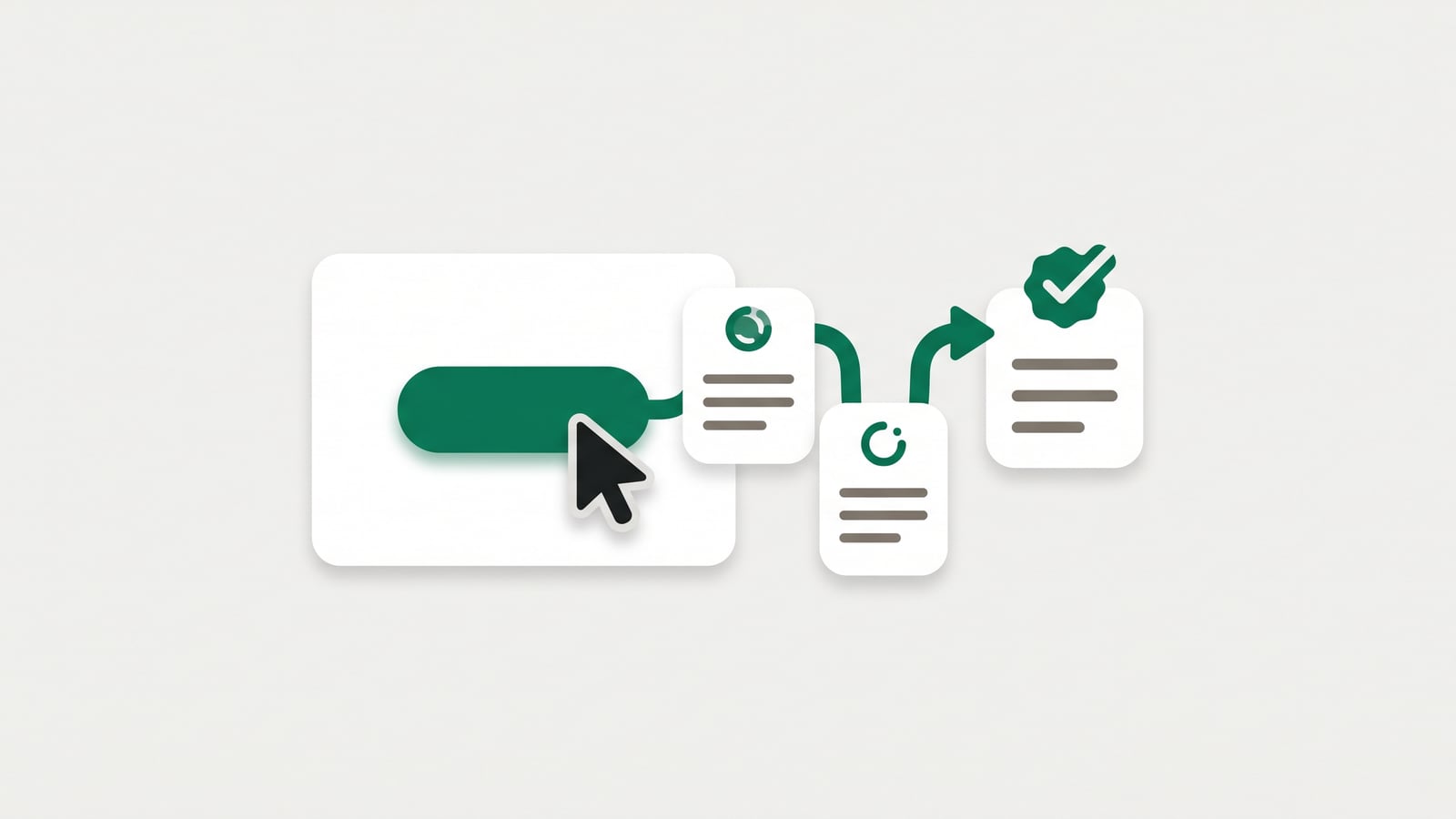
Start a capture, click through the task as you normally would, and click Done. Every click becomes a step, with its screenshot and the click marked. AI writes each step from what you clicked, and the review opens in your browser.
Review before it's published
Nothing goes to your help center until you've checked it. In the review you can:
Change the words of any step, or have AI write the steps again
Reorder steps by dragging them, or remove the ones you don't need
Blur anything on a screenshot that shouldn't be public
Pick the category, then create the article
The article comes with a click-through demo made from the same steps, and you can make its narrated video in the same go.
The Chrome extension
For anything in the browser. While you capture, a small bar lets you pause, undo the last step, add a note or blur part of the page; the bar never shows in the screenshots. Email addresses, card numbers and keys are blurred before anything leaves your browser, and what you type is never kept.
Video mode records the tab with your voice as you go. Talk through the task the way you'd explain it to a colleague: HelpLayer turns your words into text and uses them to write each step. You can also use the recording itself as the article's video.
The desktop app for Mac
For everything outside the browser: desktop software, spreadsheets, settings screens. It lives in the menu bar. Start a capture there, and each click takes a screenshot of the screen it happened on. Pause, undo and Done are on a bar at the bottom of the screen, which never shows in the screenshots either.
It only looks at your screen while you capture, and it never keeps what you type. It's signed and notarized by Apple. Windows is coming soon.
Get them
Sign in with your HelpLayer account in the browser, choose the help center, and start capturing.
 HelpLayer